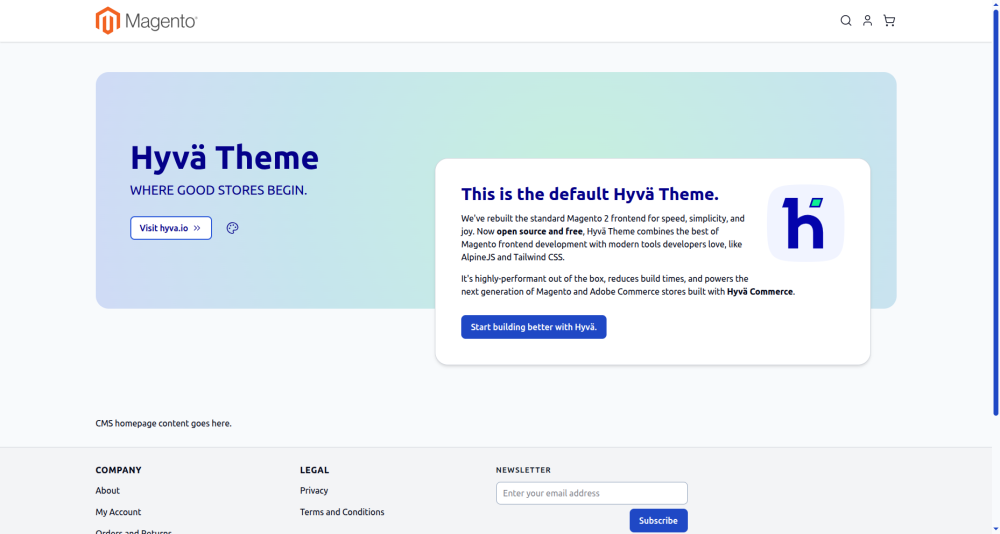
Install and Activate the Hyvä Theme in Magento 2
Adding the Hyvä Theme can significantly improve your Magento 2 store’s speed and frontend performance. Follow the steps below to install the theme using Composer, ZIP, or Git.Option 1: Install Hyvä Theme by Registering Domain & License
Prerequisites
Before you begin, ensure the following:- You have an active Hyvä license.
- You have access to the Hyvä.io customer portal.
- Your Magento 2 project supports Composer.
Licensing Limitations
- Personal account: Up to 5 Hyvä Theme licenses
- Company account: Up to 50 Hyvä Theme licenses
- For more licenses, contact Hyvä Support.
- These limits also apply to free licenses.
Step 1: Get Your Free Hyvä Theme License & Create Your Hyvä Account
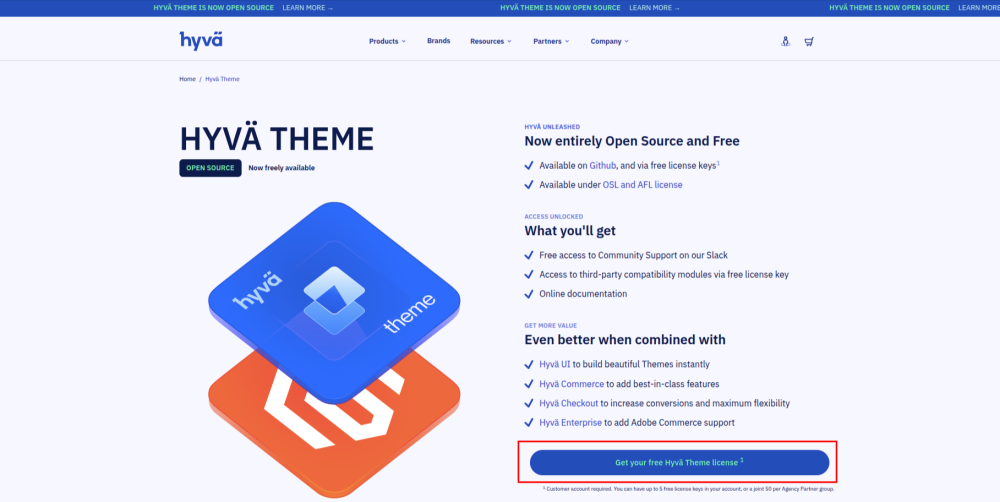
- Visit: https://www.hyva.io/hyva-theme-license.html
- Click on Get Your Free Hyvä Theme License
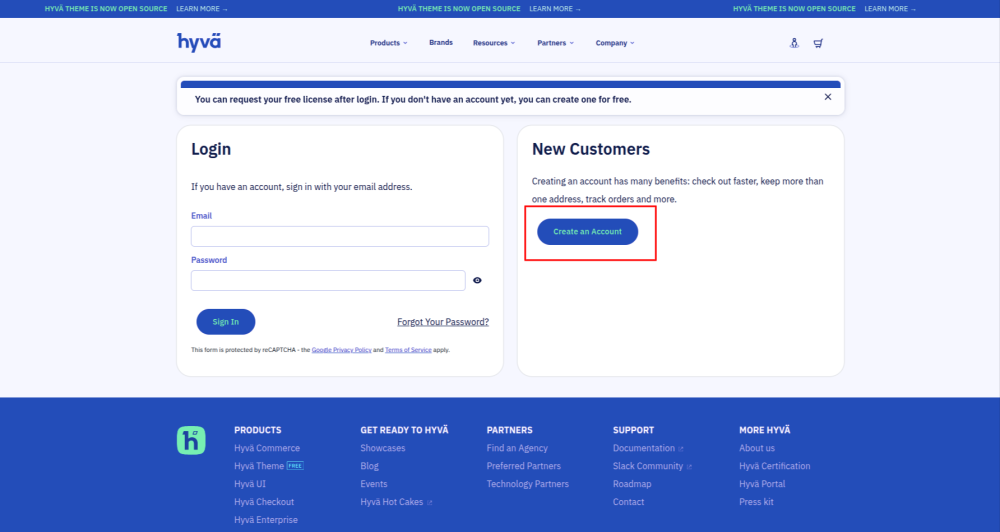
- After clicking, it will redirect you to the Hyvä login page
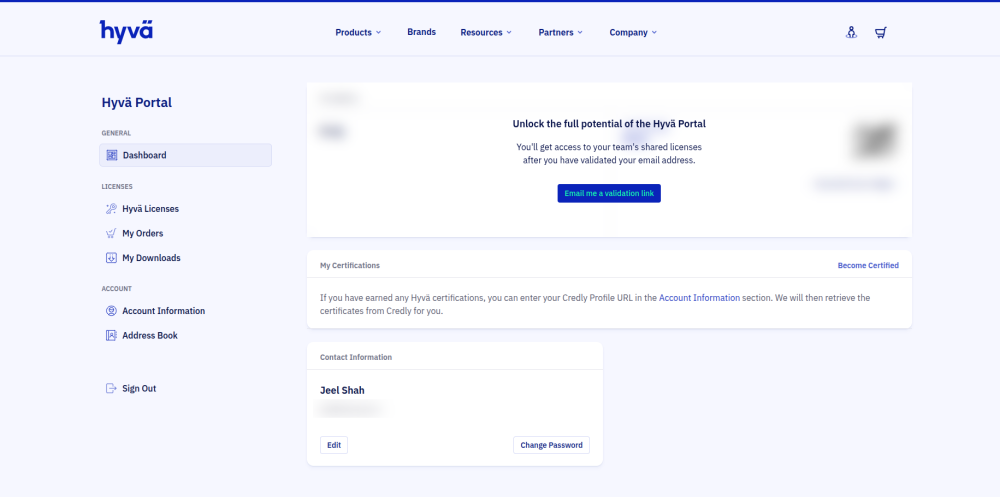
- Log in or create a new account.
- Navigate to your Dashboard.
Step 2: Add Your Domain to the Hyvä License
- Inside your Hyvä dashboard:Go to Licenses.
- Select your Hyvä Theme license.
- Click Add Domain under Allowed Domains.
- Enter your domain (e.g., example.com) and save.
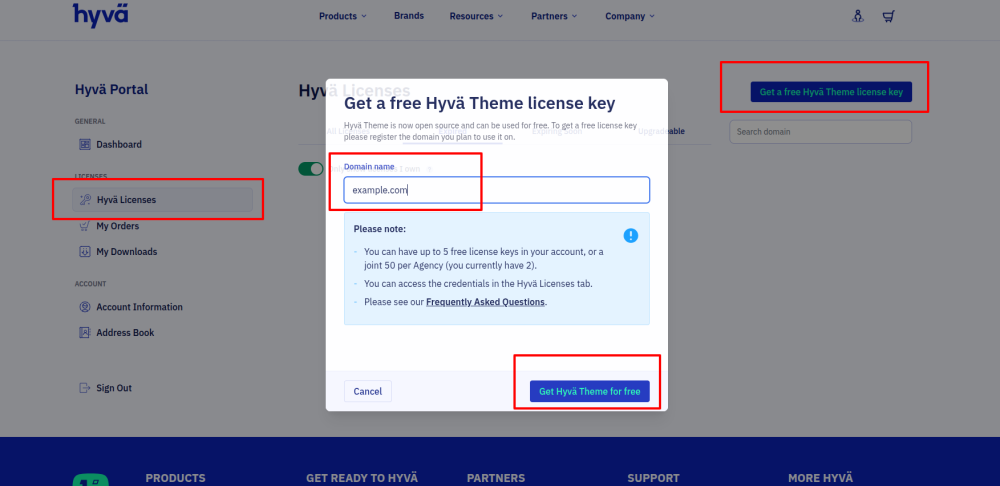
Step 3: Retrieve Your Composer Credentials
- In the Hyvä dashboard, click:Show Composer Credentials
- You will also receive the same credentials via email
- Go to this is your Private Packagist URL link
- Enter your Private Packagist Key
- Copy Commands to add your keys in composer.json & auth.json
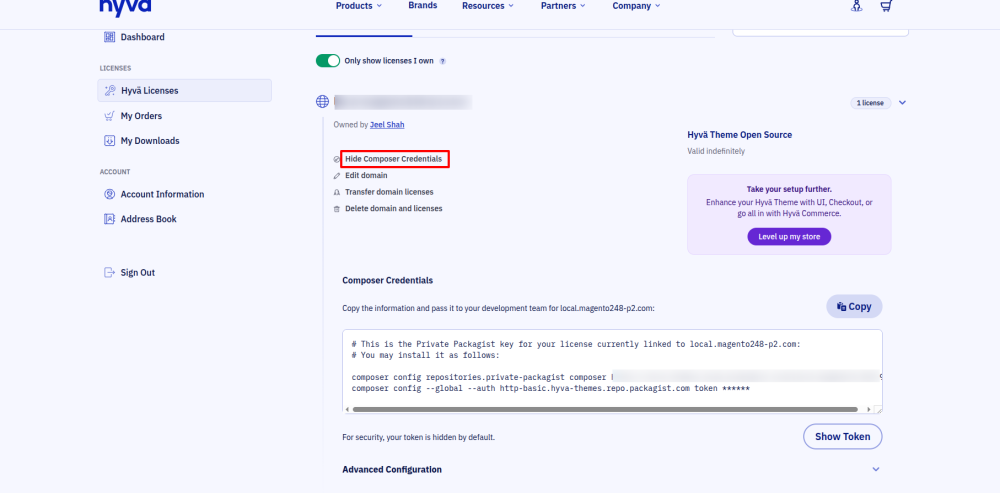
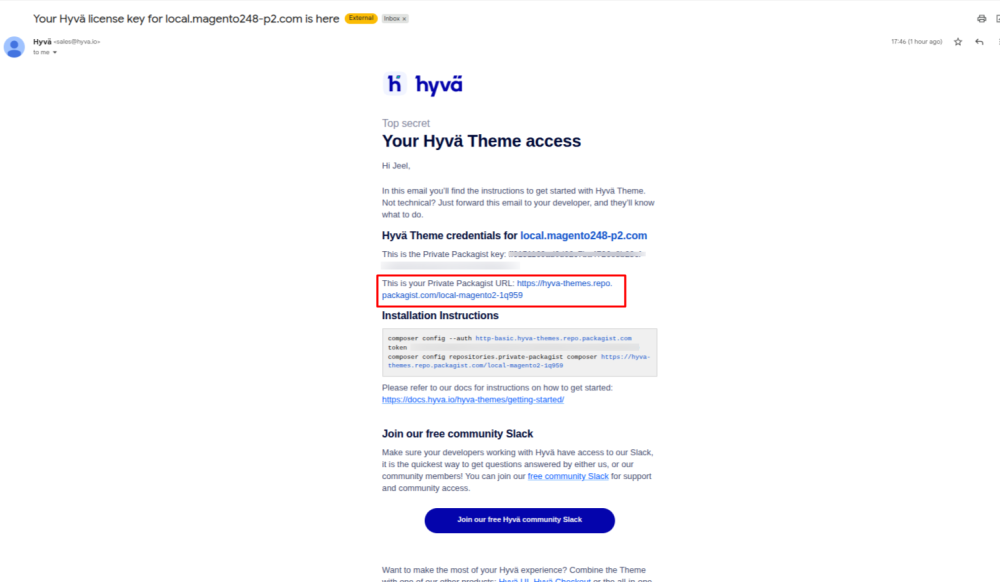
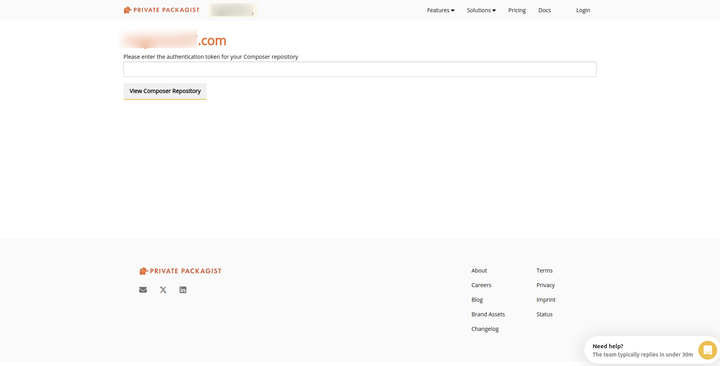
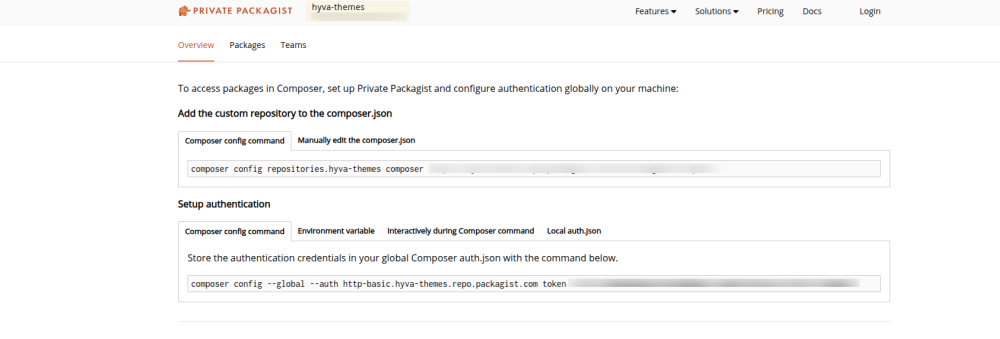
Step 4: Configure Composer Authentication
Run the following command in your Magento root:composer config --auth http-basic.hyva-themes.repo.packagist.com token yourLicenseAuthenticationKeyReplace:
yourLicenseAuthenticationKey → with the key from the Hyvä portal.
Step 5: Add the Hyvä Private Repository
composer config repositories.private-packagist composer https://hyva-themes.repo.packagist.com/yourProjectName/Replace:
yourProjectName → the project name shown in your Hyvä dashboard.
Step 6: Install the Hyvä Theme
composer require hyva-themes/magento2-default-theme
Step 7: Run Setup Upgrade
bin/magento setup:upgrade
Step 8: Activate the Hyvä Theme
Navigate in Magento Admin:Content → Design → Configuration
- Edit Default Store View.
- Select Hyvä / Default under Applied Theme.
Step 9: Clear Magento Cache
bin/magento cache:flush
Option 2: Install Hyvä Theme Using ZIP
Step 1: Download ZIP from GitHub
Hyvä Official GitHub RepositoryStep 2: Extract to Theme Directory
app/design/frontend/Hyva/default
Step 3: Run Setup Commands
bin/magento setup:upgrade
bin/magento setup:static-content:deploy -f
bin/magento cache:flush
Option 3: Install Hyvä Theme via Git Clone
Step 1: Navigate to Theme Directory
cd app/design/frontend/
Step 2: Clone the Repository
git clone https://github.com/hyva-themes/magento2-default-theme.git Hyva/default
Step 3: Run Setup Commands
bin/magento setup:upgrade
bin/magento setup:static-content:deploy -f
bin/magento cache:flush
Step 4: Activate the Theme
Same as Option 1 → Apply theme: Content → Design → Configuration → Hyvä / DefaultInstallation Complete!
You have successfully installed and activated the Hyvä Theme in Magento 2.Optional Next Steps:
- Explore the Hyvä Documentation.
- Use Hyvä UI Library components.
- Customize Tailwind & Alpine.js for better UX.