
Managing Orders Becomes Easier with Archive Orders in Adobe Commerce
Managing orders becomes harder as an online store grows. When thousands of orders pile up in the admin panel, it can be challenging for merchants and support teams to find the ones they actually need. To help with this, Adobe Commerce includes a feature called “Archive Orders.” This feature lets you move old or unnecessary orders out of the main order list—without deleting them. This keeps the order grid clean, faster, and easier to work with. In this blog, we’ll explore what the Archive Orders feature is, why merchants should use it, and how it works behind the scenes.What is the Archive Orders Feature?
Archive Orders is an Adobe Commerce–exclusive feature that allows admin users to hide old or unnecessary orders from the main order grid. This helps keep the order management interface clean while ensuring that archived entries remain accessible at any time. Instead of deleting old orders, merchants can safely archive and restore them when needed. This feature is available only in Adobe Commerce (Magento Enterprise Edition) and not in Magento Open Source.Why Use Archive Orders?
Here are the key benefits:- 1. Cleaner Order Management: Large stores receive thousands of orders. Over time, old, canceled, or completed orders clutter the grid. Archiving reduces noise and increases efficiency.
- 2. Better Performance: A smaller order grid loads faster, improving the admin experience.
- 3. Zero Data Loss: No order data is deleted—archived orders remain accessible in their own section.
- 4. Easier Focus for Customer Support Teams: Teams can quickly view only active or recent orders, improving response time.
How Archive Orders Works in Adobe Commerce
The feature adds three archive options directly within the Order management interface:1. Archive Individual Orders
Admins can select one or more orders in Sales → Orders and click: Actions → Move to Archive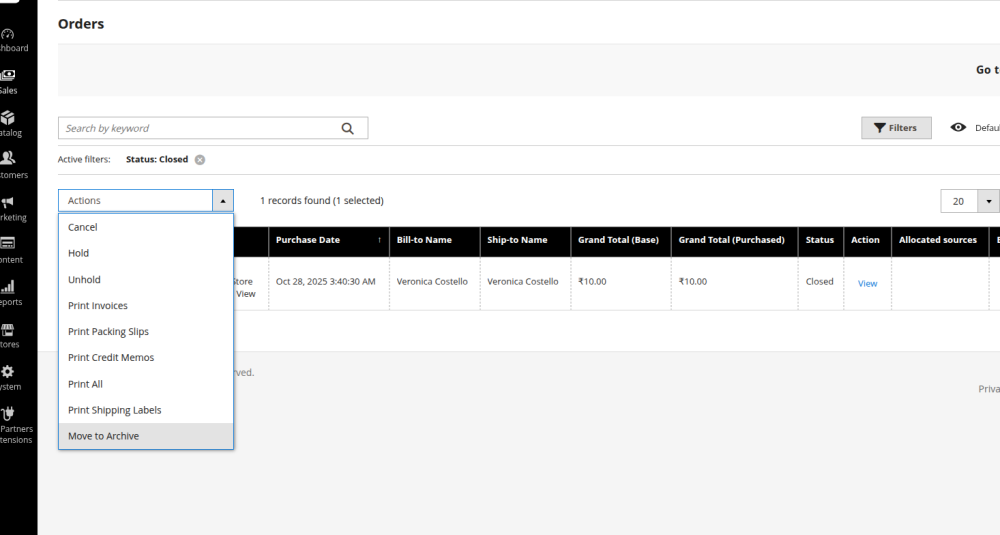
2. Automatic Archiving
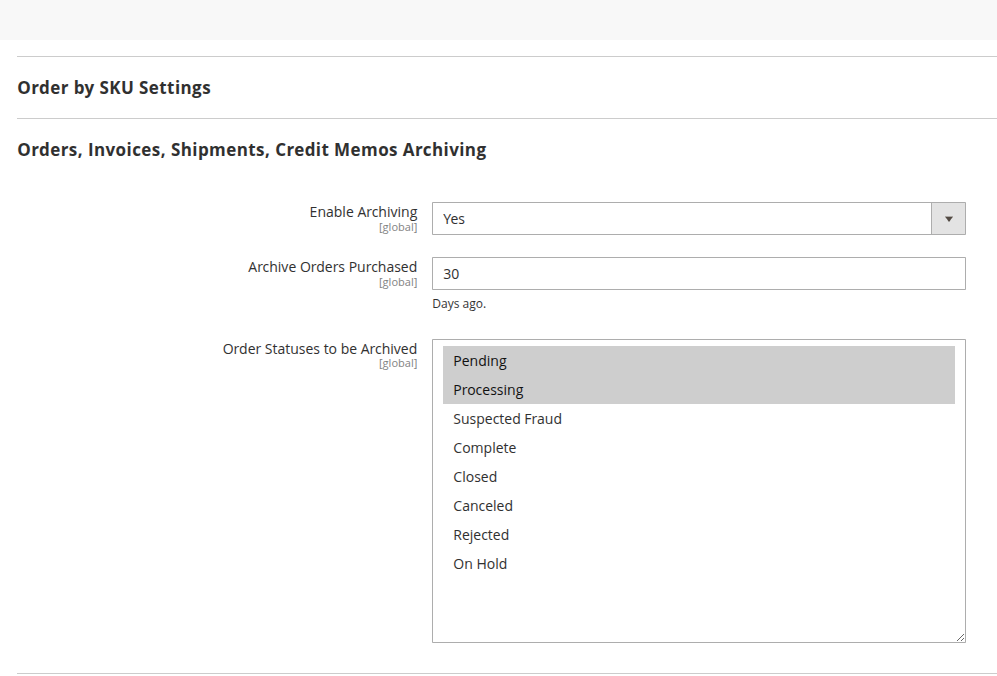
You can set rules to auto-archive orders after a certain number of days. Configuration Path:Stores → Configuration → Sales → Sales → Orders, Invoices, Shipments, Credit Memos ArchiveKey configuration options include:
- Enable Archiving
- Archive Orders Purchased
- Order Statuses to be Archived
 Note: If you later decide to turn archiving off, all archived orders are restored to the previous state.
3. View Archived Orders
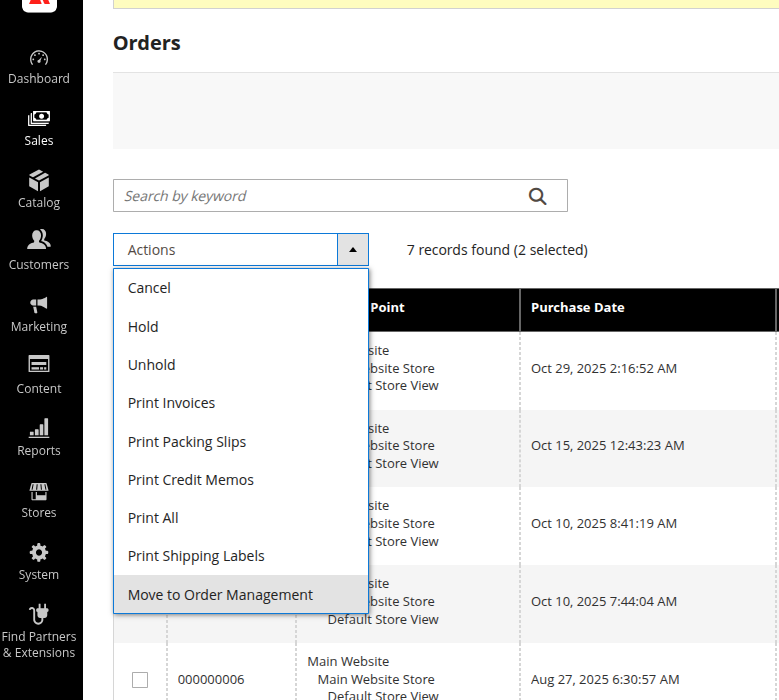
Archived orders appear under:Sales → Archive → OrdersFrom here, you can restore orders anytime.
Developer Insight: How Archiving Works Behind the Scenes
When an order is archived, Adobe Commerce moves records from the main sales tables to the corresponding archive tables.Example Table Mappings:
| Original Table | Archive Table |
|---|---|
| sales_flat_order | sales_flat_order_archive |
| sales_flat_invoice | sales_flat_invoice_archive |
| sales_flat_shipment | sales_flat_shipment_archive |
| sales_flat_creditmemo | sales_flat_creditmemo_archive |
Cron Job for Automatic Archiving
Automatic archiving is executed through a scheduled cron:php var/n98-magerun2.phar sys:cron:run magento_salesarchive_archive_ordersArchiving does NOT affect:
- Ongoing order processing
- Payment details
- Customer’s order history in the frontend
Limitations of Order Archiving
- Available only in Adobe Commerce
- Does not reduce database size (data is only moved, not deleted)
- Archived orders do not appear in order reports
How to Configure Archive Orders (Step-by-Step)
- Go to Stores → Configuration
- Navigate to Sales → Sales → Orders, Invoices, Shipments, Credit Memos Archive
- Enable archiving: Yes
- Set Archive Orders Older Than (X Days), e.g., 30 or 60
- Save configuration
- Run cron or wait for scheduled execution:
php var/n98-magerun2.phar sys:cron:run magento_salesarchive_archive_orders
Conclusion
The Archive Orders feature in Adobe Commerce is an excellent tool for maintaining a clean and efficient backend order workflow. It enhances admin usability, improves order grid performance, and helps teams stay focused—without losing any historical data. If you're running Adobe Commerce and dealing with a high volume of orders, enabling this feature can significantly improve your operational efficiency.Enhance Your Order Management with Evrig
Managing orders efficiently is crucial for delivering a smooth ecommerce experience. At Evrig, we help businesses get the most out of Adobe Commerce and Magento 2 by implementing smart, scalable solutions like the Archive Orders feature.
Our experts can assist you in optimizing your order grid, improving backend performance, and tailoring order management workflows to match your operational needs. We ensure your store stays organized, responsive, and easy to maintain — no matter how quickly your order volume grows.
From configuration to custom development and continuous support, we offer end-to-end guidance designed to elevate your store’s efficiency.
If you’re looking to enhance your Magento order management or need help implementing this feature, connect with Evrig — we’re here to support your success!