
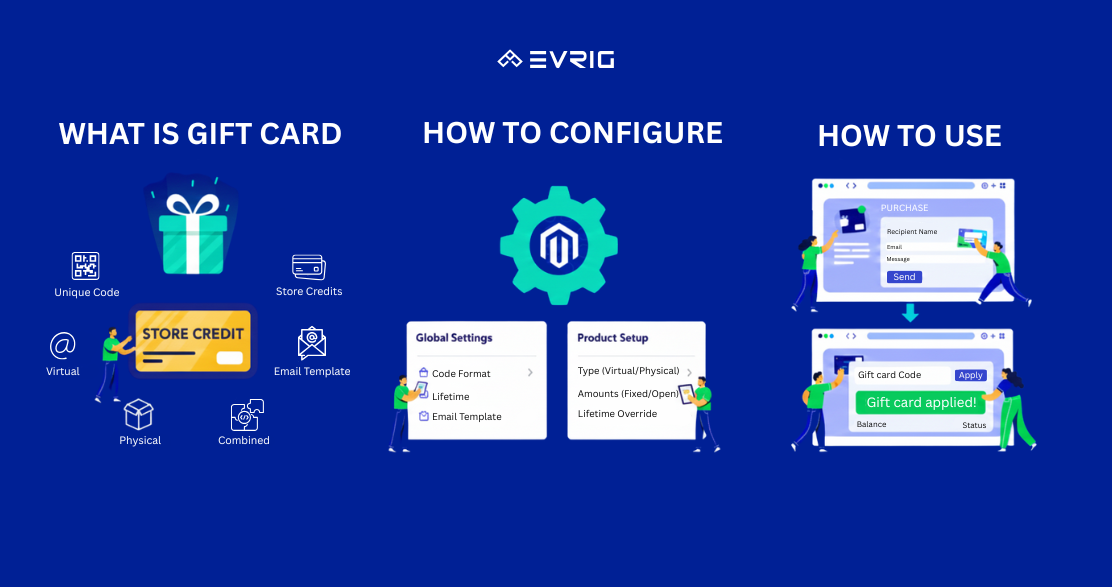
Gift Cards in Adobe Commerce allow merchants to sell stored-value products that customers can redeem during checkout. Each gift card is assigned a unique, single-use code generated from a predefined code pool.
Adobe Commerce supports three types of gift cards: Virtual, Physical, and Combined. Each type has its own delivery method and required customer information.
Gift Card Product Types
Virtual Gift Card
Delivery: Email
Requires: Recipient email
Description: Delivered electronically; no shipping required.
Physical Gift Card
Delivery: Shipping
Requires: Recipient shipping address
Description: A physical card shipped to the customer.
Combined Gift Card
Delivery: Email + Shipping
Requires: Email + Shipping address
Description: Sends both an email and a physical card.
How to Create a Gift Card Product
Follow the steps below to create a Gift Card in Adobe Commerce.
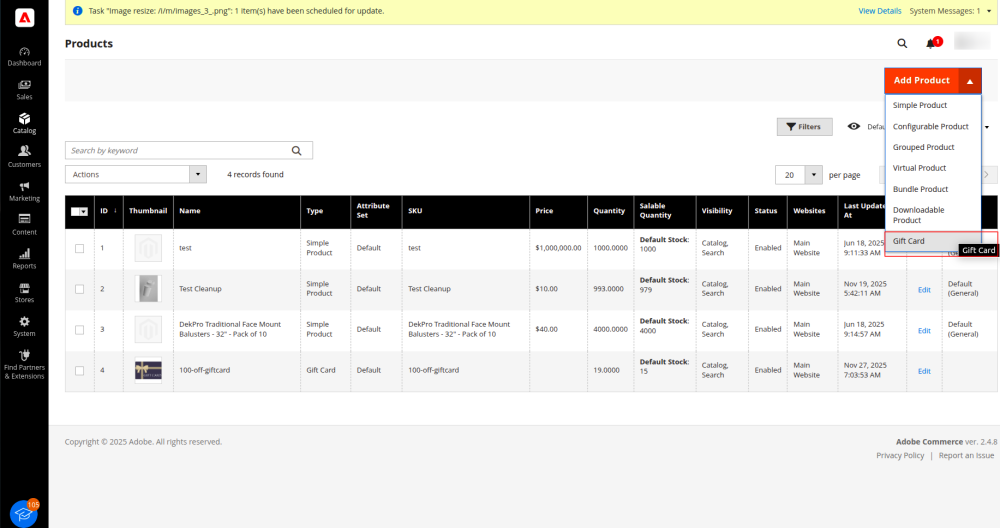
Step 1: Choose the Product Type
- Go to Admin → Catalog → Products.
- Under Add Product, select Gift Card.
Step 2: Complete the Required Settings
- Enter the Product Name (e.g., "Luma Virtual Gift Card").
- Enter the SKU (auto-filled by default).
- Set Card Type to:
- Virtual
- Physical
- Combined
Gift Card Amount Options
- Fixed Amounts — click Add Amount to add predefined values.
- Open Amount — set Open Amount to Yes and define the range.
- You can use both fixed and open amounts together.
Step 3: Complete the Basic Settings
- Enter Quantity for Physical or Combined Gift Cards.
- Add Weight if the product ships physically.
- Select the Gift Card category.
- Fill additional attributes if needed.
Step 4: Configure Gift Card Information
Override global gift card settings if required:
- Treat Balance as Store Credit — allows redemption into store credit.
- Lifetime (days) — leave blank for no expiration.
- Allow Message — enables a custom purchaser message.
- Email Template — choose the email template for sending gift card codes.
Step 5: Publish the Product
Fill all product details and click Save.
How to Purchase & Redeem a Gift Card
How to Purchase a Gift Card
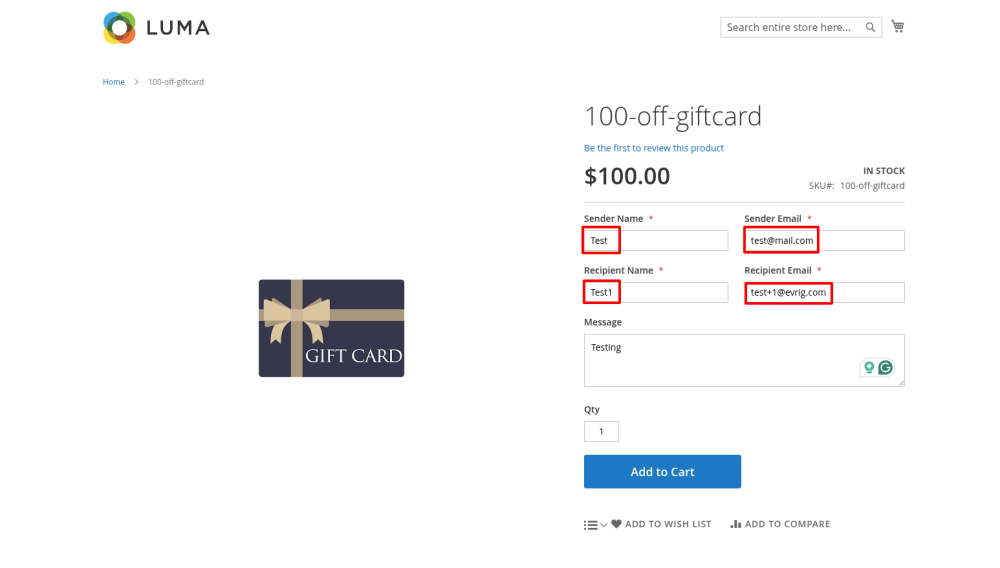
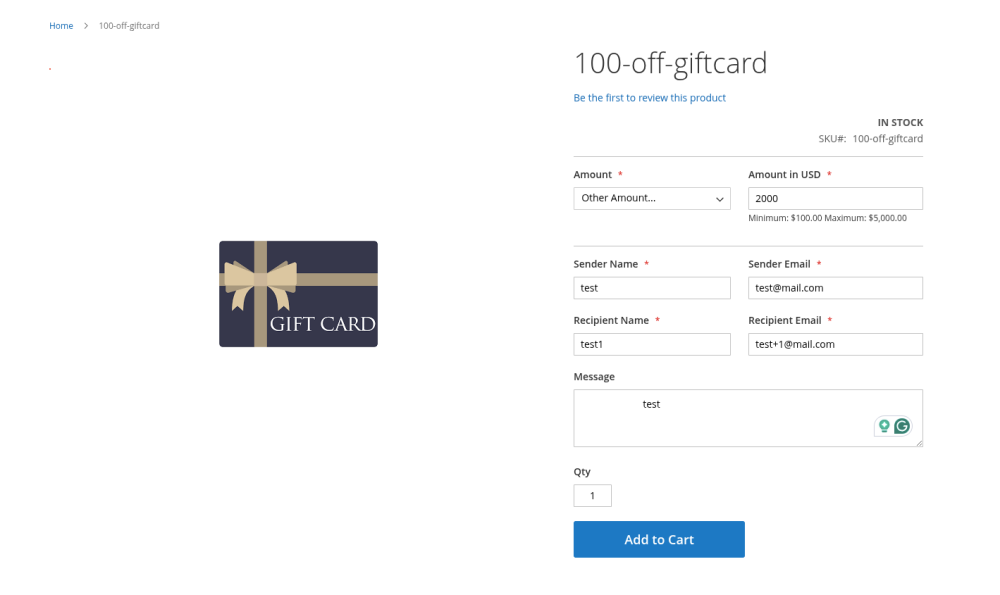
- Open the Gift Card product on the storefront.
- Enter required details:
- Sender Name
- Sender Email
- Recipient Name
- Recipient Email (for Virtual or Combined)
- Optional message
- Gift Card Amount (if gift card amount is open amount)
- Add to cart and complete checkout.
After Purchase
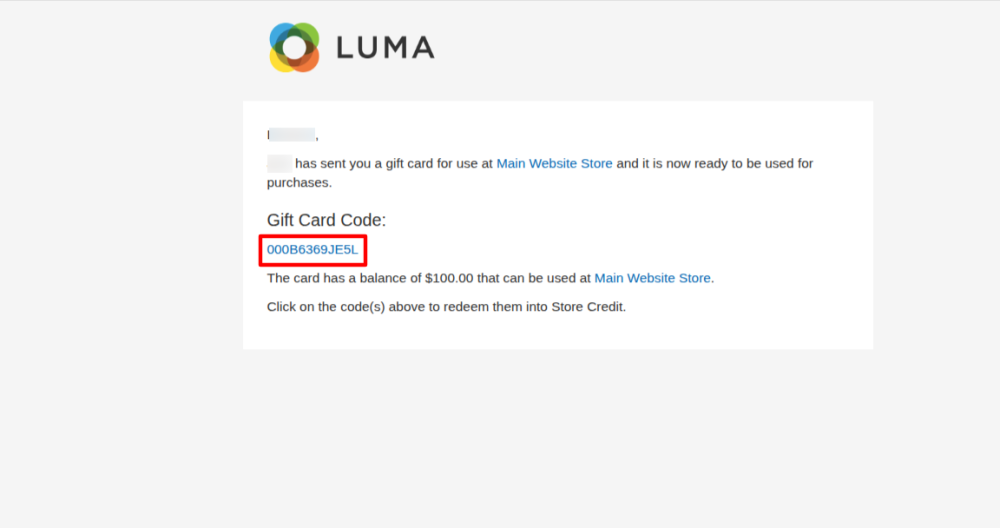
- Once the invoice is generated, the recipient receives an email.
- The email contains their unique gift card code.
How the Recipient Can Redeem
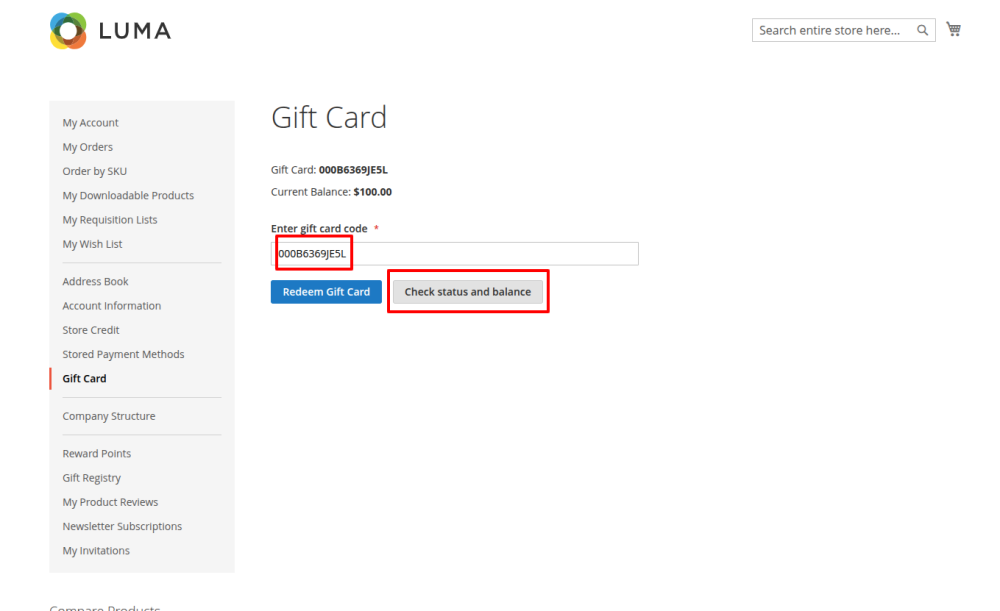
Option 1: Redeem From My Account
- Log in to customer account.
- Go to My Account → Gift Card.
- Enter the gift card code.
- Click Check Status & Balance.
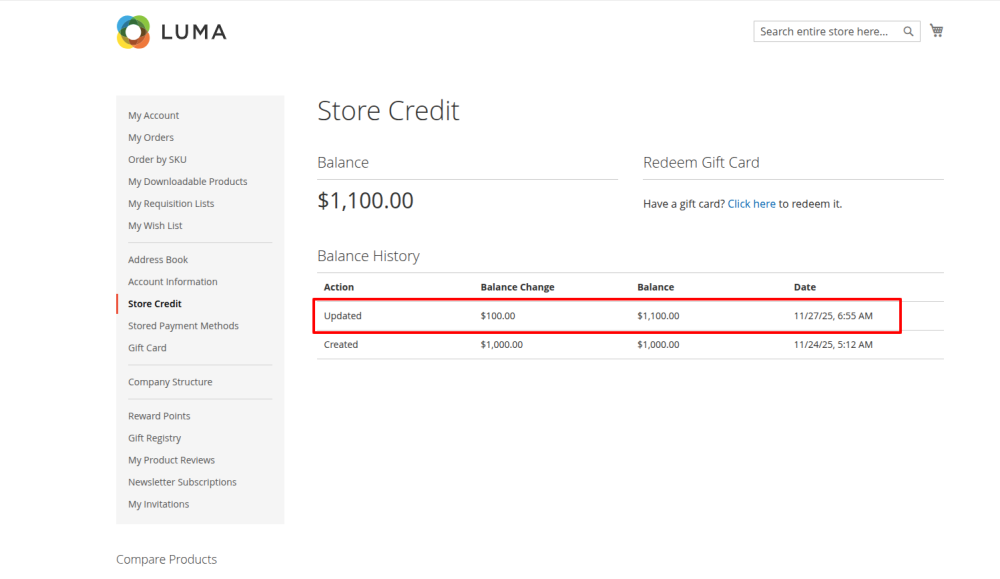
- Redeem to convert value into Store Credit.
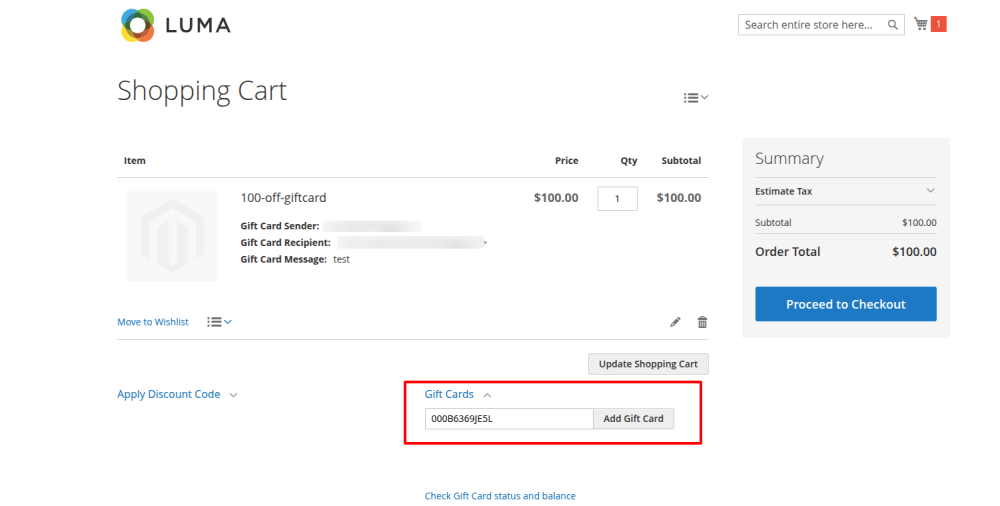
Option 2: Redeem Directly in Cart
- Add products to cart.
- On the cart page, enter the gift card code in the Gift Card field.
- The gift card amount will be applied to the order total.
How Evrig Can Help You
Managing Gift Cards in Adobe Commerce can be powerful, but setting them up correctly—from product configuration to code pools, email templates, and redemption rules—often requires expert guidance.
- Set up Virtual, Physical, and Combined Gift Card products
- Configure gift card code pools and email delivery templates
- Customize the purchase and redemption experience
- Integrate gift cards with store credit, promotions, and checkout rules
- Fix issues related to delivery, invoicing, or code redemption
- Optimize Adobe Commerce performance and improve conversions
Whether you're launching gift cards for the first time or improving your current setup, our Adobe Commerce experts ensure everything is implemented smoothly and aligned with your business needs.
Need help with Gift Cards or Adobe Commerce development?
Contact our team at Evrig