
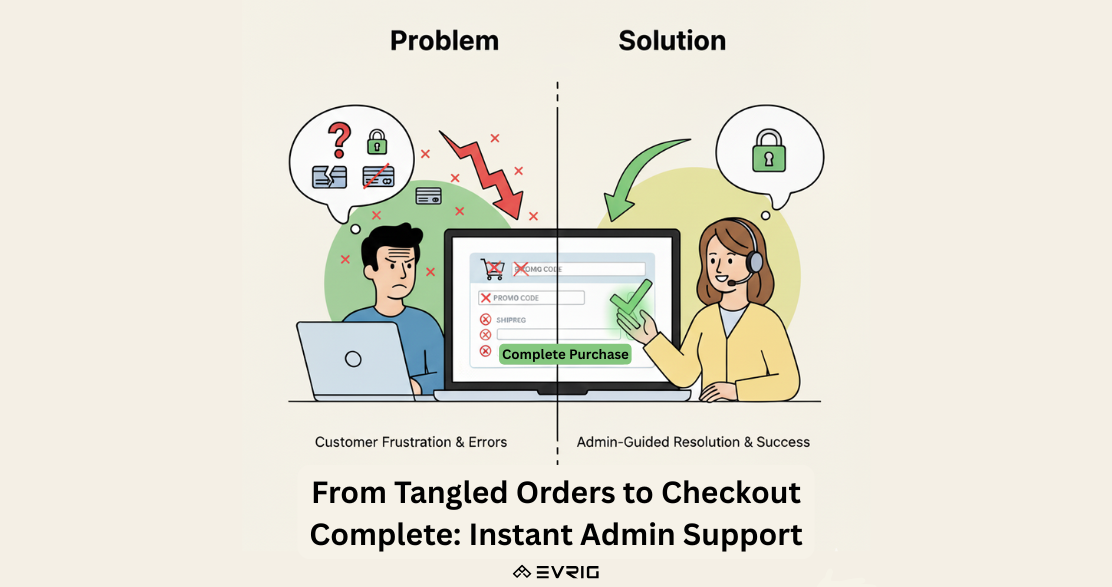
Sometimes customers need help completing their orders—whether it's adding a missing shipping address, applying a coupon code, or troubleshooting a checkout error. Adobe Commerce’s Login as Customer feature allows store administrators to securely log into a customer’s account without needing their password, see exactly what the customer sees, and assist them in real time.
All actions taken while logged in as a customer are applied directly to the customer’s account.
Where the Login as Customer Button Appears
Once enabled, Admin users can access Login as Customer from:
-
Customer Edit page
-
Order View page
-
Invoice View page
-
Shipment View page
-
Credit Memo View page
This makes it easy to assist customers from any stage of the order lifecycle.
1. Enable Login as Customer (Configuration Settings)
Step 1: Enable the Feature
-
In the Admin sidebar, go to:
Stores → Settings → Configuration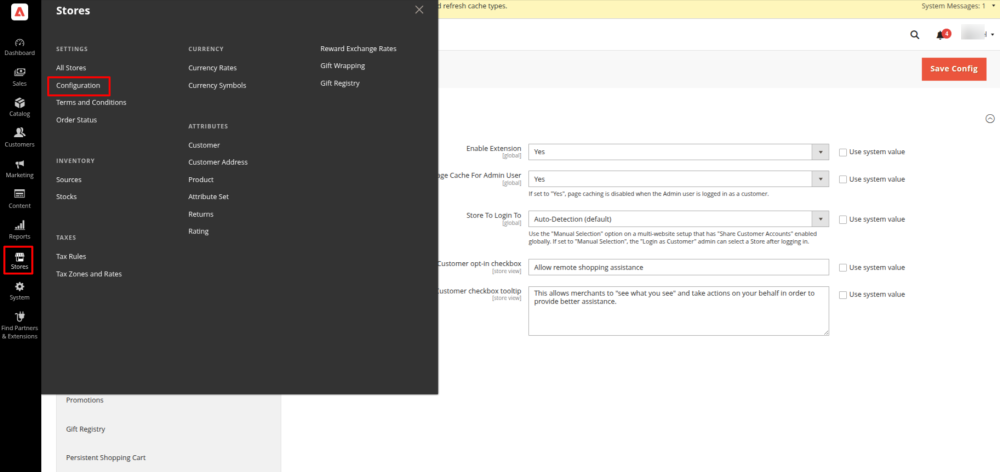
-
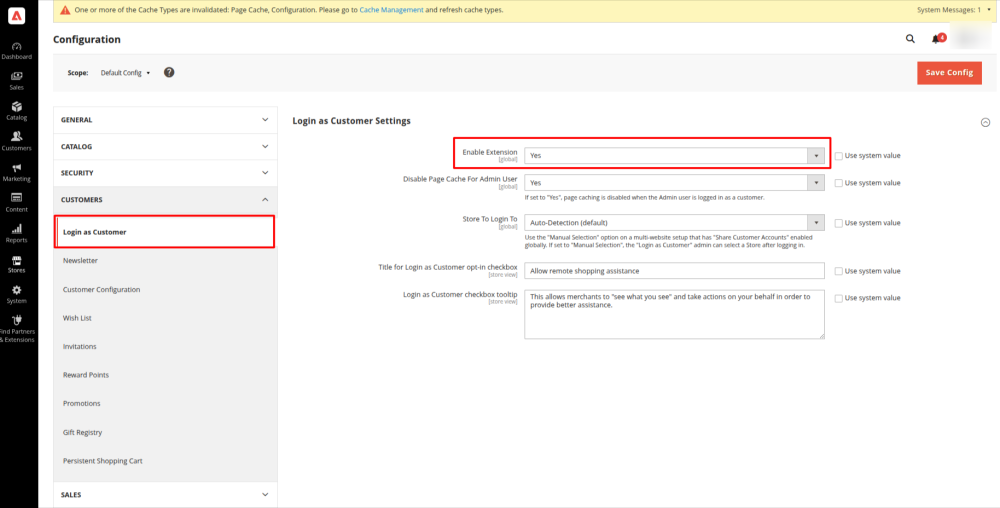
Expand the Customers section.
-
Select Login as Customer.
-
Set Enable Login as Customer to Yes.
-
(Optional) Set Disable Page Cache for Admin User to No to keep caching active.
-
If using multiple websites/store views, set Store View to Manual Selection.
-
Click Save Config.
2. Enable Access for Admin Roles
Step 2: Grant Permissions
-
Go to: System → Permissions → User Roles
-
Select a role from the list.
-
Click Role Resources.
-
Change Resource Access to Custom.
-
Under Customers, check:
-
Allow Login as Customer
-
View Login as Customer Log
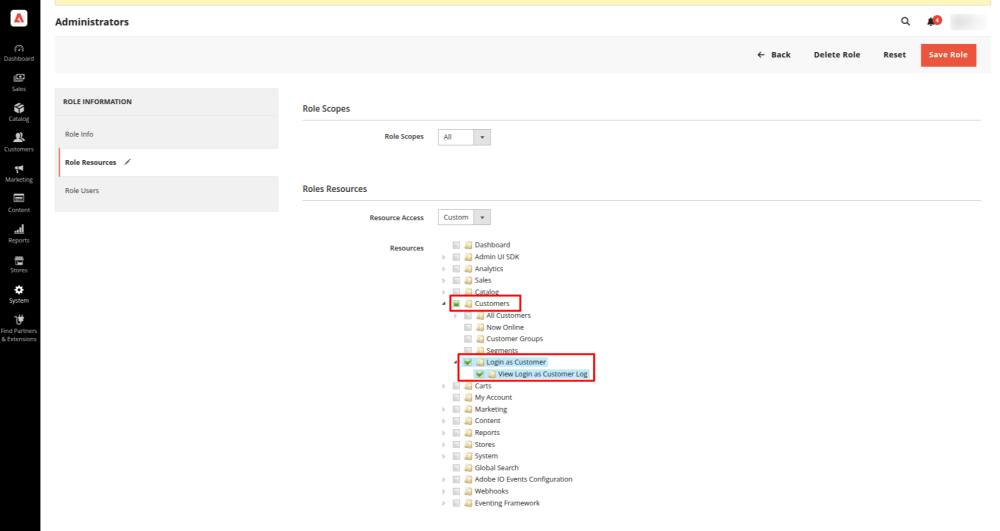
6. Click Save Role.
3. Enable Customer Permission (Frontend Setting)
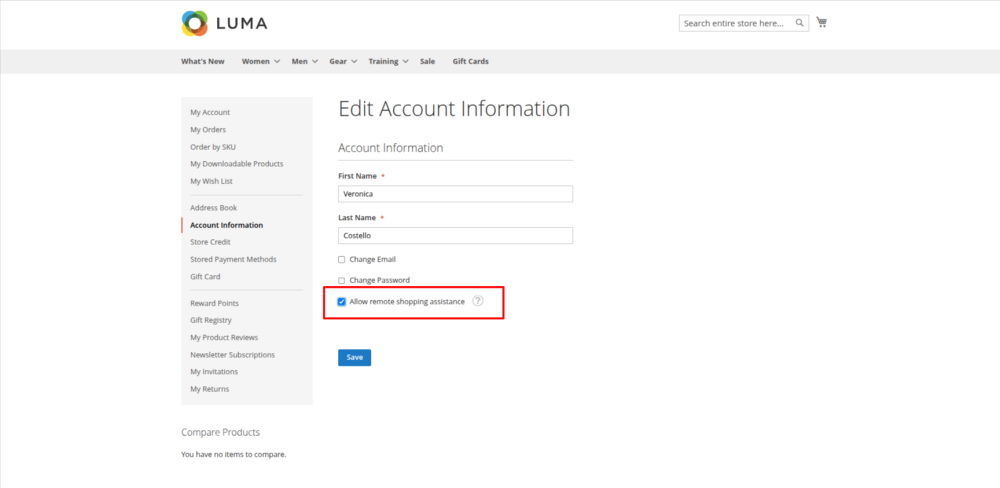
For security, customers must individually allow support staff to access their account.
Customer Action
-
Customer logs in and goes to Account Information.
-
Checks the box: Allow remote shopping assistance.
-
Clicks Save.
4. Login as Customer (How Admins Use It)
Once permission is granted:
-
Go to Customers → All Customers → Edit any customer.
-
In the panel, open Account Information.
-
Set Allow remote shopping assistance to Yes (if the customer not permitted it).
-
Save Customer
-
Click the Login as Customer button where available.
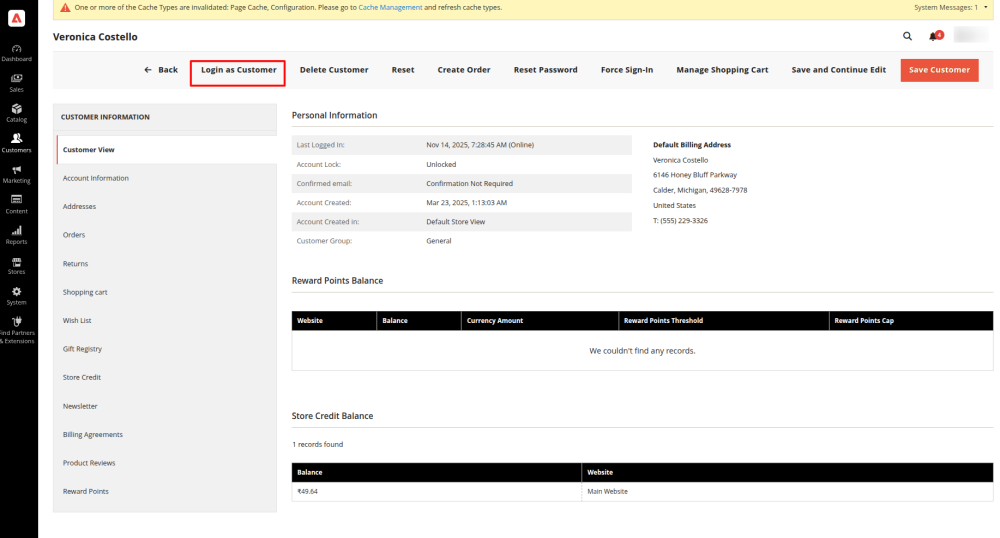
You are now viewing the storefront exactly as the customer sees it.
This makes it easy to:
-
Complete checkout for a struggling customer
-
Reproduce errors on product or cart pages
-
Apply discounts or add missing items
-
Update addresses or payment information
5. Login as Customer Logging
Adobe Commerce logs all Login-as-Customer actions.
To View Logs:
-
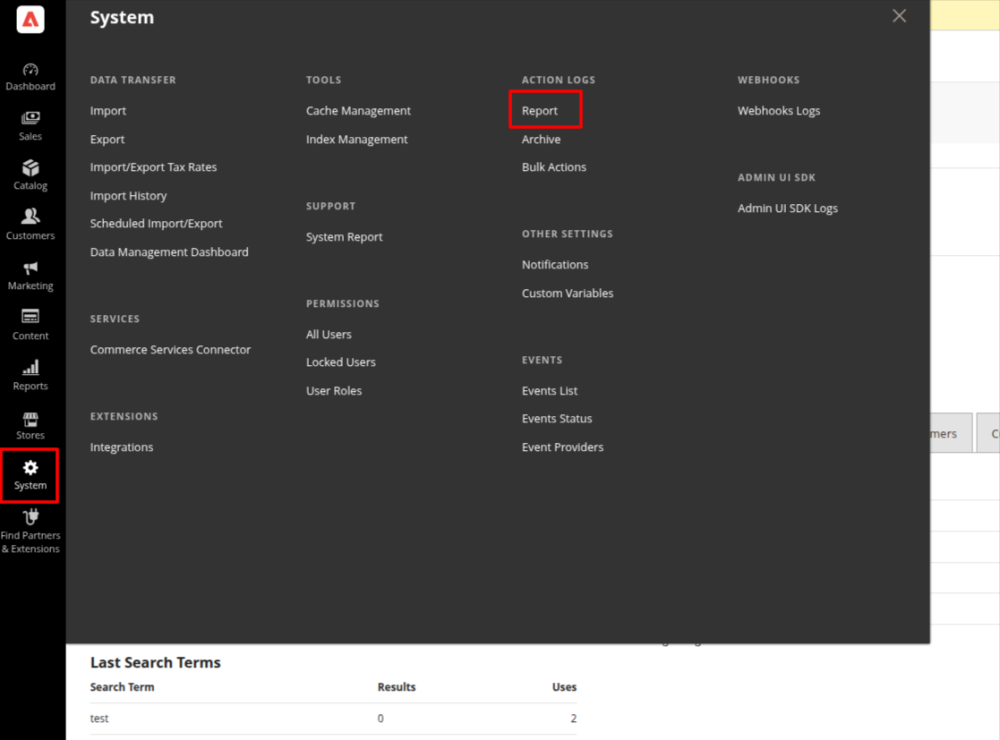
Go to System → Action Logs → Report.
-
Filter Action Group by Login As Customer.
-
Click Search.
This provides transparency and auditing for customer security.
Real-Life Use Cases (Practical Examples)
Example 1: Customer Cannot Apply Promo Code
Scenario:
A customer contacts support saying: “My discount code isn’t working, and I need to place my order today.”
How Support Helps:
-
Admin logs in as the customer.
-
Opens cart and enters the promo code.
-
Finds the code works, but the customer forgot to meet the minimum cart value.
-
Admin informs the customer and helps them add the missing item.
-
Customer completes the purchase successfully.
Result:
Customer is happy, promotion applied, and no cart abandonment.
Example 2: Customer Stuck During Checkout
Scenario:
A customer is not able to proceed from the shipping step due to an incorrect address.
How Support Helps:
-
Using Login as Customer, the admin accesses the checkout page.
-
Identifies an invalid PIN/ZIP code entered by the customer.
-
Corrects the address and completes the shipping selection.
-
Customer proceeds to payment smoothly.
Result:
Support resolves the issue instantly without asking the customer to repeat the process.
How Evrig Supports Shopper Assistance in Adobe Commerce
Evrig helps brands use Adobe Commerce’s Login as Customer feature to deliver faster and more effective customer support.
We help you:
-
Configure and customize shopper assistance tools
-
Resolve customer issues instantly with real-time session access
-
Guide shoppers through checkout to reduce drop-offs
-
Enable secure, role-based access for support teams
-
Integrate support workflows with your CRM or helpdesk
Ready to enhance your shopper assistance experience? Contact us and let Evrig help you get started.