

What Is Store Credit?
Store Credit is a built-in Adobe Commerce feature that lets customers keep a credit balance inside their account.
Instead of issuing cash refunds or depending entirely on payment gateways, merchants can return money as store credit — allowing customers to use it for future orders.
This not only improves the customer journey but also helps merchants retain more revenue by encouraging repeat orders.
Why Store Credit Matters (Benefits for Businesses & Customers)
For Customers
-
Use store credit as a payment method during checkout
-
Receive quick refunds without waiting for payment gateway processing
-
Track balance and transaction history from their account dashboard
For Merchants
-
Reduce refund-related delays and fees
-
Maintain customer engagement by keeping credit inside the store
-
Offer partial or full payments via store credit
-
Increase chances of repeat purchases
-
Manage customer credit from the admin panel with complete transparency
For developers, it’s a flexible feature that integrates well with custom checkout flows, customer dashboards, and automated refund logic.
How Store Credit Works in Adobe Commerce
Here’s a quick breakdown to help merchants understand the workflow and developers understand implementation logic.
1. Adding Store Credit
After an order is paid and invoiced, the merchant can issue a Credit Memo to refund the customer. Instead of refunding the amount through the original payment method, the admin can choose:
- Refund to Store Credit
This adds the amount directly to the customer's credit balance.
Tip for developers: Ensure Zero Subtotal Checkout is enabled if store credit will fully cover an order total. Otherwise, checkout may show validation errors.
Store Credit Checkout Workflow
-
Customer logs in
Store credit is tied to the customer account, so login is essential. -
Customer selects "Use Store Credit" at the Review & Payments step
Adobe Commerce displays the balance available. -
Order total recalculates
If credit covers the full amount → other payment methods are hidden. -
Order is placed and balance updates automatically
Both customer and admin can view updated credit activity.
How Merchants Manage Store Credit (Admin Workflow)
1. Enabling Store Credit
Navigate to:
Stores → Configuration → Customers → Customer Configuration → Store Credit Options
Key settings include:
-
Enable Store Credit
-
Show Store Credit History
-
Automatic refunds to store credit
-
Email sender & templates
These settings allow merchants to control visibility, automation, and customer communication.
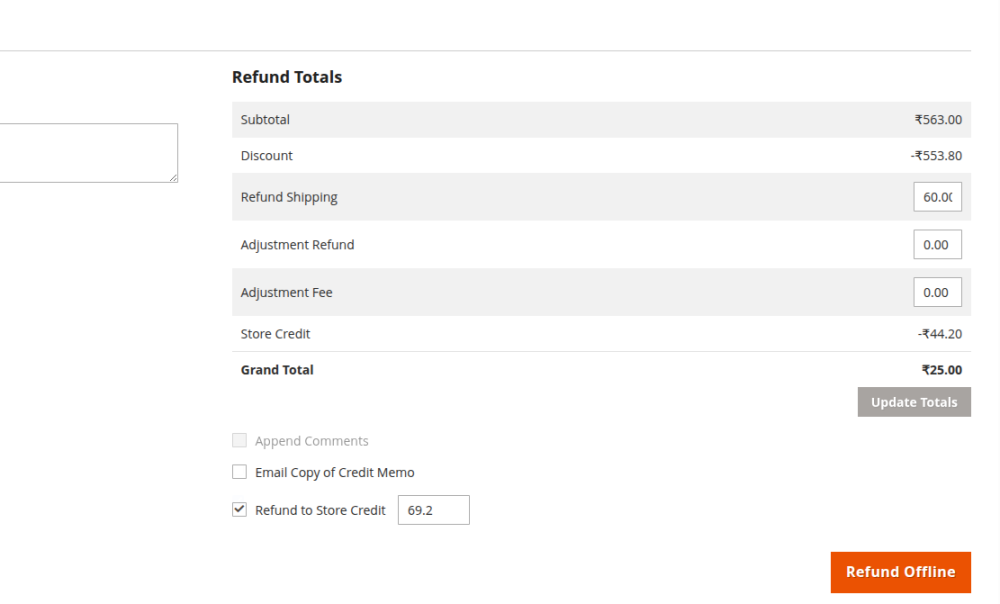
2. Issuing Refunds via Credit Memo
From Sales → Orders → View Order → Credit Memo:
Options include:
-
Refund Offline
-
Refund / Refund Online
-
Refund to Store Credit (only with Refund Offline)
Admins can refund:
-
Fully or partially
-
With/without shipping adjustments
-
With custom adjustment fees or amounts
-
Optionally return stock (if inventory management is enabled)

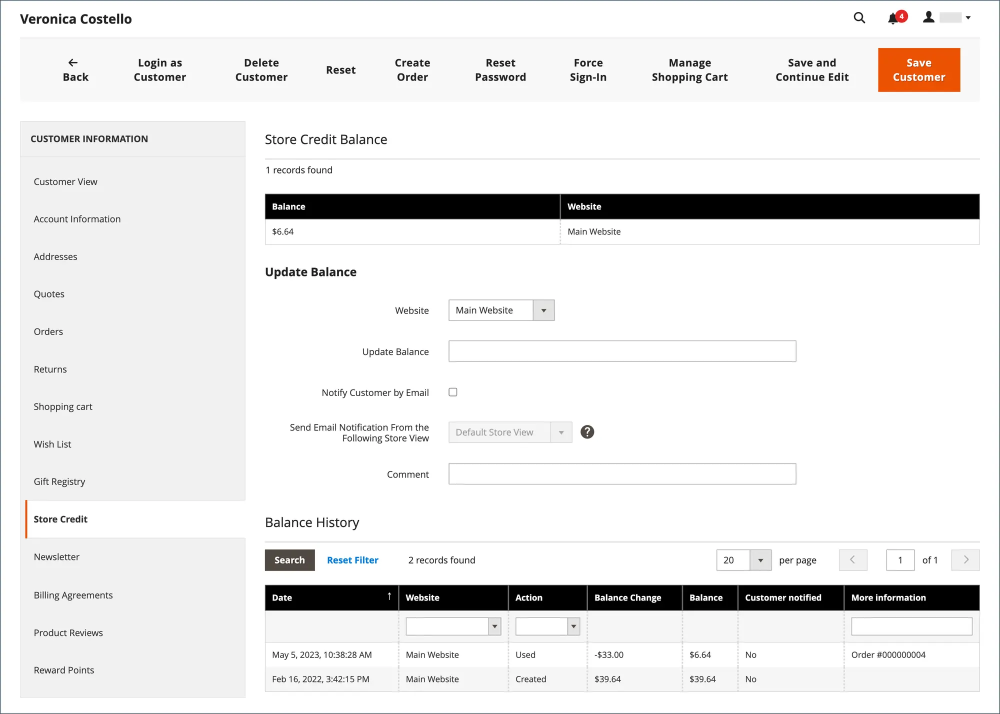
3. Updating a Customer’s Credit Balance Manually
From Customers → All Customers → Edit → Store Credit:
Admins can:
-
Add or subtract credit
-
Choose website scope
-
Email notify the customer
-
Add a comment for internal records
-
Review transaction history for transparency
This is especially useful for promotional credits or resolving customer service queries.
Apply Store Credit
Store administrators can view and manage a customer’s store credit, update balances, and apply credits to orders.
1. View Customer Credit Balance and History
- Go to Customers > All Customers on the Admin sidebar.
- Find the customer in the grid.
- In the Action column, click Edit.
- On the Customer View page, scroll down to see the Store Credit Balance section at the bottom.
You can view the customer’s current store credit and its transaction history here.
2. Update Store Credit Balance
- Go to Customers > All Customers.
- Find the customer and click Edit under the Action column.
- In the left panel, select Store Credit.
- Choose the Website (storefront) to associate the balance with.
- In Update Balance, enter the new store credit value.
- (Optional) To notify the customer by email:
- Select the Notify Customer by Email checkbox.
- Choose the store view from Send Email Notification From the Following Store View.
- Add a Comment about the update (for admin reference).
- Click Save and Continue Edit or Save Customer.
The updated amount will appear in the Balance History section
3. Apply a Credit Balance to an Order (as Admin)
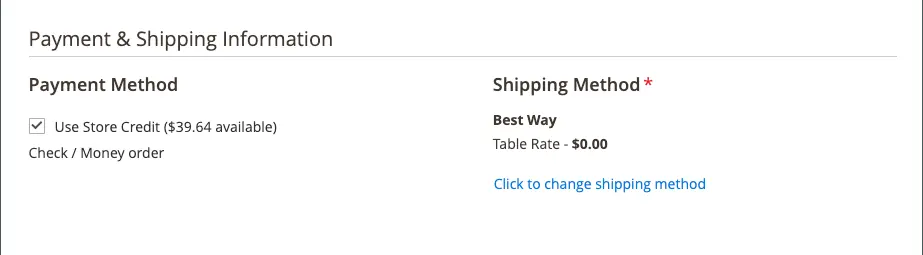
As a store administrator, you can place an order on behalf of a customer and apply their store credit during checkout.
- Create a new order for the customer.
- In the Payment & Shipping Information section, the available store credit balance is displayed.
- Select the Use Store Credit checkbox to apply the available balance.
- If the store credit is less than the total, the remaining amount can be paid using another payment method.
- Complete the order.
The applied store credit will be shown in the Order Summary section.
4. Apply Store Credit During Customer Checkout
Customers can also apply store credit themselves when placing an order from the storefront.
- If a customer has store credit, it will be shown during checkout.
- On the Review & Payments step, the available credit amount is displayed under Store Credit.
- To use it, the customer clicks Use Store Credit.
Info:
The order total is recalculated automatically.
The applied store credit amount appears in the Order Summary.

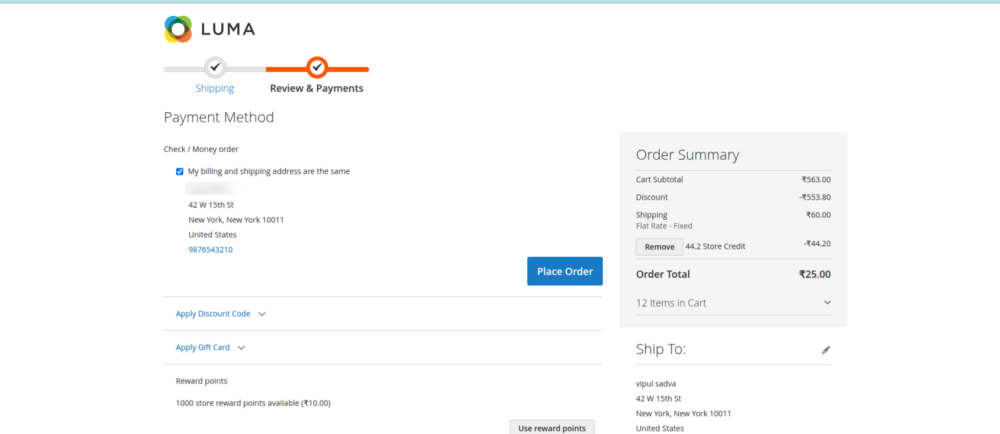
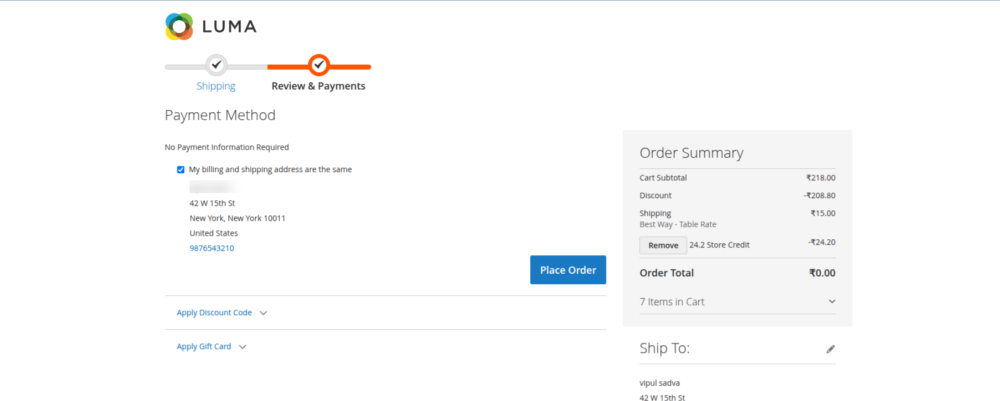
- Once ready, the customer clicks Place Order to complete the purchase.
Why Adobe Commerce Store Credit Helps You Sell More
Store credit isn’t just a feature — it’s a revenue retention strategy.
It boosts repeat purchases: Customers are more likely to return when they already have money stored in their account.
It reduces refund friction: No waiting for banks or payment gateway confirmations.
It improves customer satisfaction: Fast, predictable, and transparent.
It empowers support teams: Easily compensate customers for issues with goodwill credits.
It helps developers build personalized experiences. You can customize checkout, dashboards, cron-based credit adjustments, and promotional workflows.
How Evrig Helps You Get More Out of Adobe Commerce
At Evrig, we don’t just implement features — we help brands grow with smart, future-ready Adobe Commerce solutions.
Our certified Magento experts help you:
-
Configure, extend, and customize Store Credit for advanced use-cases
-
Build intelligent customer segmentation and personalized shopping experiences
-
Automate marketing, promotions, and loyalty workflows
-
Optimize checkout and refund processes for higher conversions
-
Integrate third-party systems while keeping Store Credit perfectly in sync
Whether you’re scaling a B2B business or enhancing a B2C storefront, we craft solutions that accelerate growth and improve retention.
Ready to turn simple store credit into a powerful loyalty engine?
Connect with Evrig today — where Magento innovation meets real results.